版本1.0
作者:Falko和Timme
翻译:Josen
最后编辑于2012年8月6日
本教程介绍如何安装ISPConfig3,准备一个CentOS6.3 x86_64的服务器以及配置ISPConfig3。 ISPConfig3是一个虚拟主机控制面板,可让您通过网络浏览器配置以下服务:nginx web server, Postfix mail server, MySQL, BIND nameserver, PureFTPd, SpamAssassin, ClamAV, Mailman, and many more。自3.0.4版以来,ISPConfig到Apache的Apache Web服务器的全面支持;本教程中涉及的服务器使用nginx的,而不是Apache的设置。
请注意,此设置并不适用于ISPConfig2!它是有效的ISPConfig3只!
我不发出任何保证,这样配置也可以在你那里正常运行!
1要求
要安装这样的系统,你需要具备以下条件:
- 你要冲镜像站点下载两张CentOS 6.3 DVDs 光盘。(镜像站点列表可以在这里找到: http://isoredirect.centos.org/centos/6/isos/x86_64/).
- 一个快速的互联网接入。
2初步说明
在本教程中,我使用的主机名为server1.example.com,IP地址192.168.0.100,网关192.168.0.1。这些设置可能会有所不同,所以你必须在适当情况下更换。
3安装基本系统
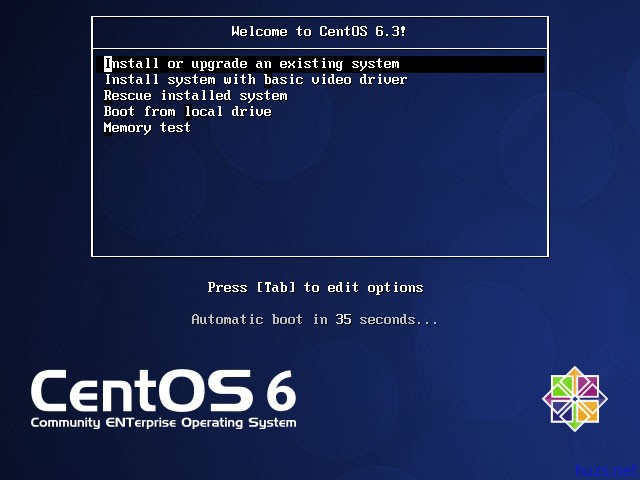
首先使用CentOS 6.3 DVD (DVD 1)引导. 选择安装或者升级一个已经存在的系统:
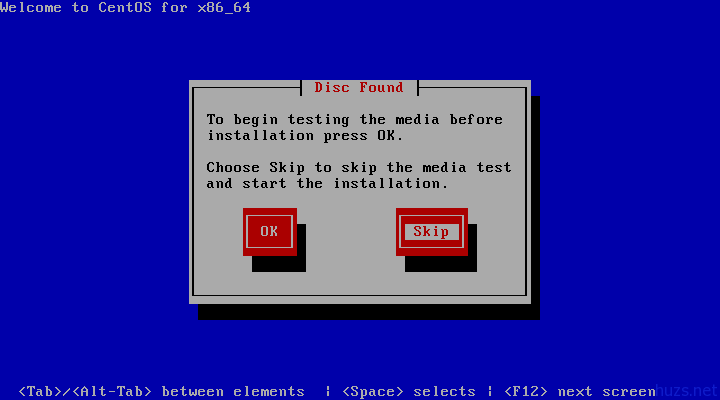
所以在这里我们将跳过这个测试,它可能需要很长的时间来测试安装介质:
CentOS的安装程序的欢迎屏幕会出现。点击“下一步”:

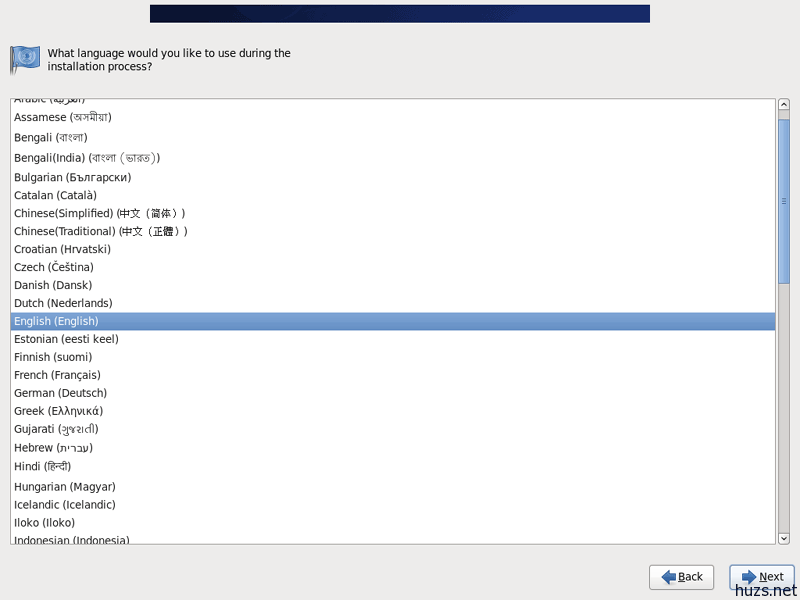
选择你的语言并下一步:
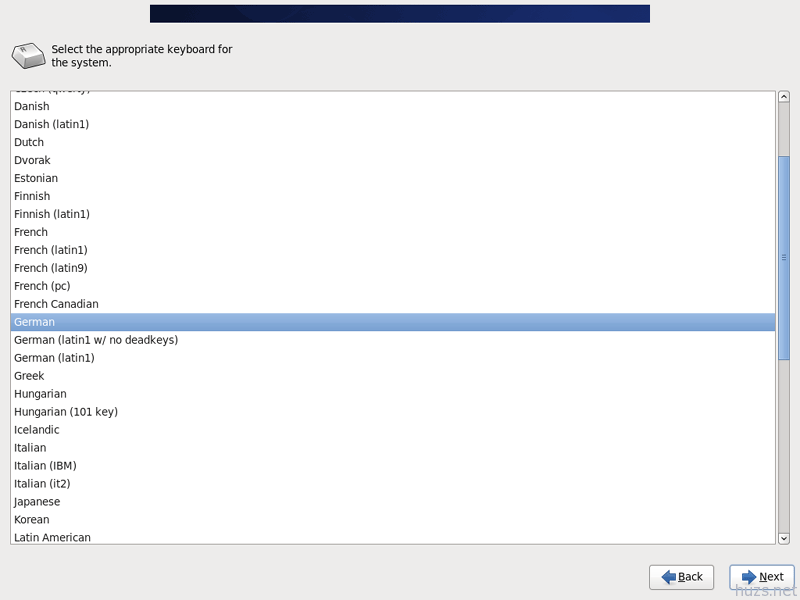
选择键盘布局:
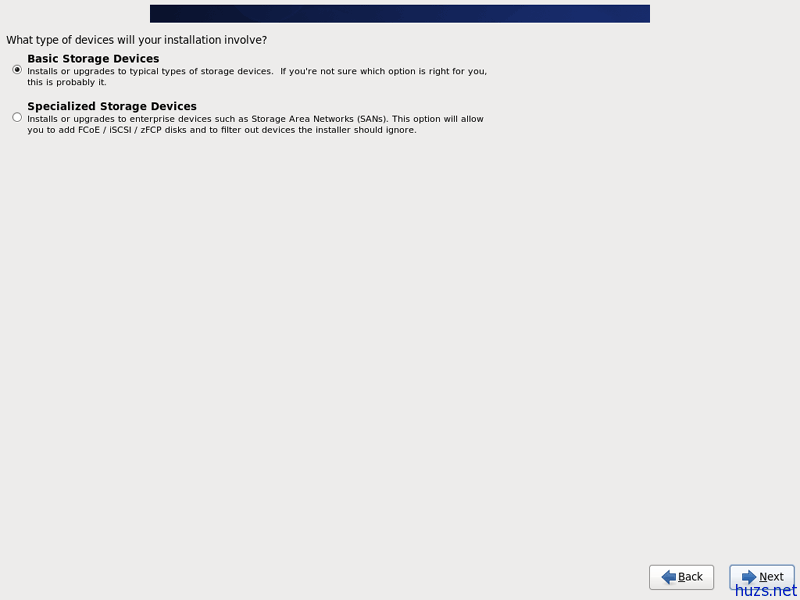
我假设你使用本地连接的硬盘驱动器,所以你应该在这里选择“基本存储设备:
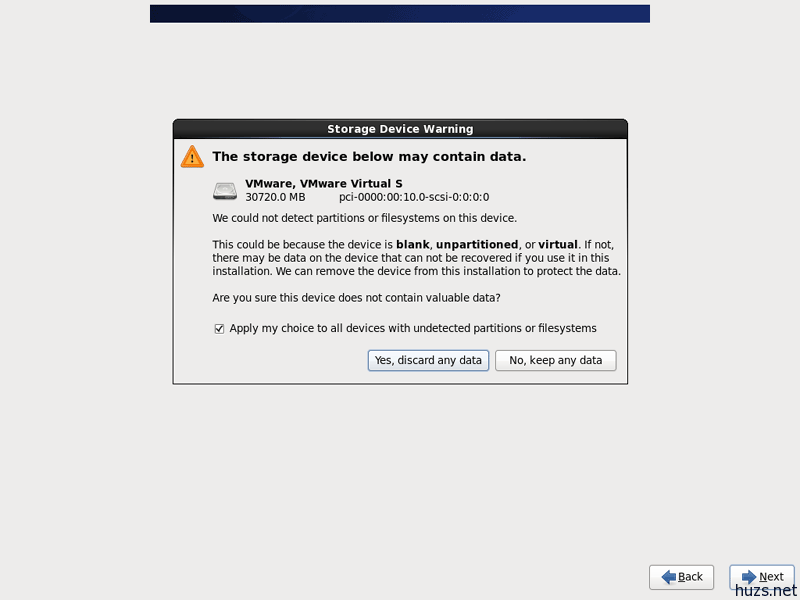
您可能会看到以下的警告 – “存储驱动器警告”。确定是否删除数据,或者保留数据。当然,如果你选择保留,你将无法进行下一步:
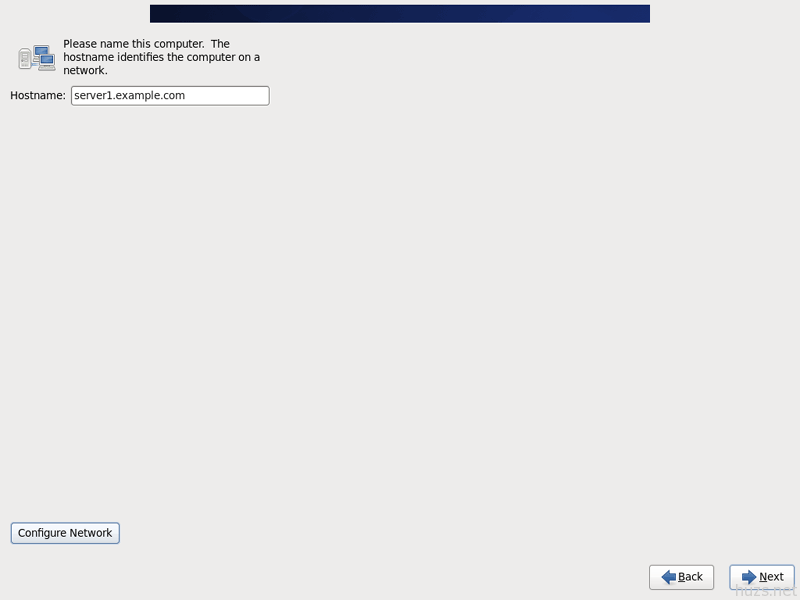
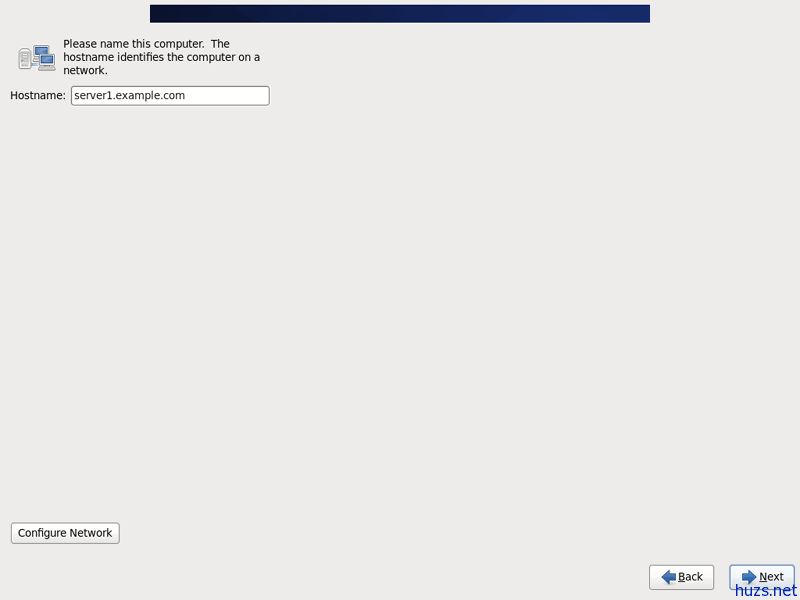
填写服务器的主机名(例如server1.example.com),然后单击“配置网络”按钮:
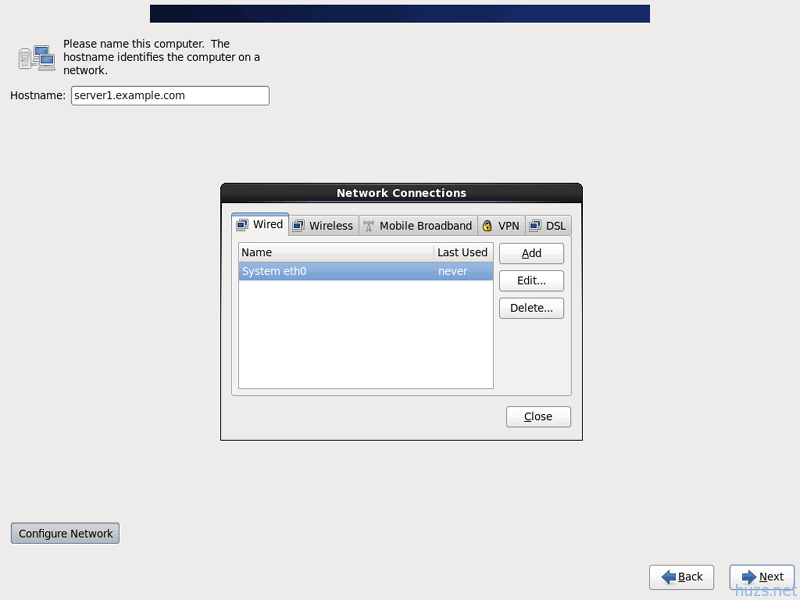
转到“有线“选项卡,选择”网络接口”(可能是eth0),并单击“编辑”…:
勾选“自动连接”复选框,然后到IPv4设置选项卡,并在方法下拉菜单中选择“手动”。填写一个,两个或三个域名服务器(以逗号分隔)中的DNS服务器领域(如8.8.8.8,8.8.4.4),然后单击“添加”按钮旁边的地址区域:
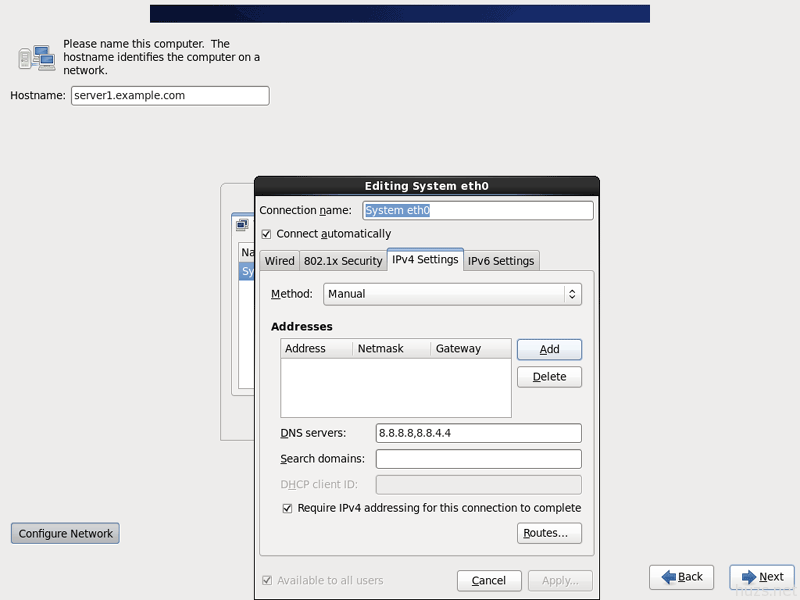
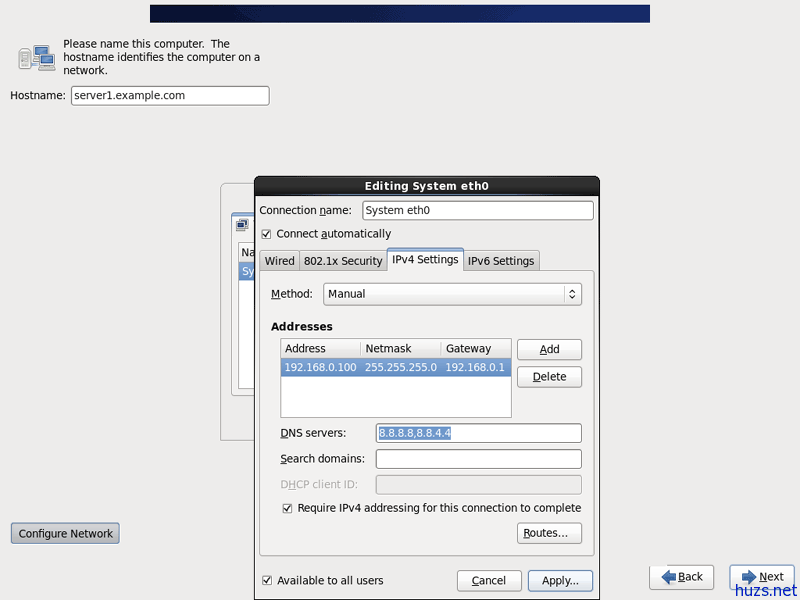
现在给你的网卡的静态IP地址和网络掩码(在本教程中我使用的IP地址为192.168.0.100,子网掩码255.255.255.0,同时填写你的网关(如:192.168.0.1),单击“Apply(应用)按钮:
现在已经完成网络配置。点击“下一步”按钮:
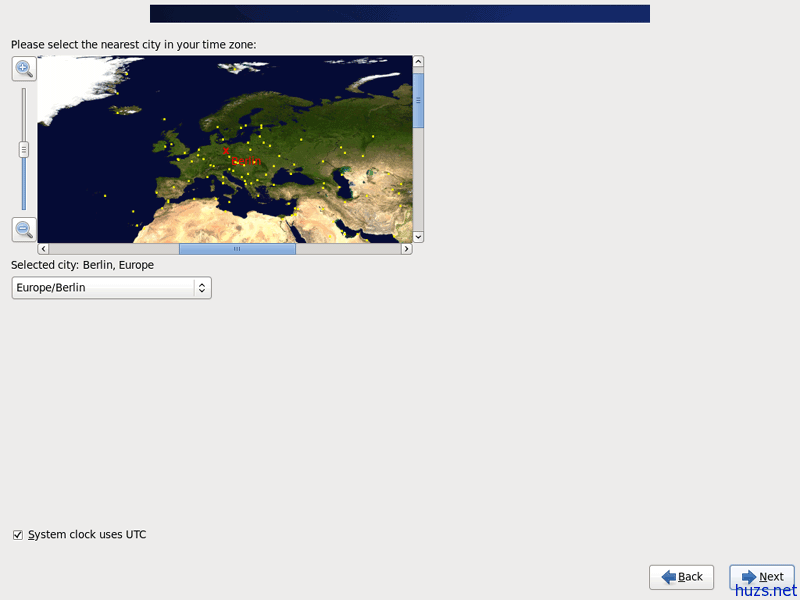
选择您所在的时区:
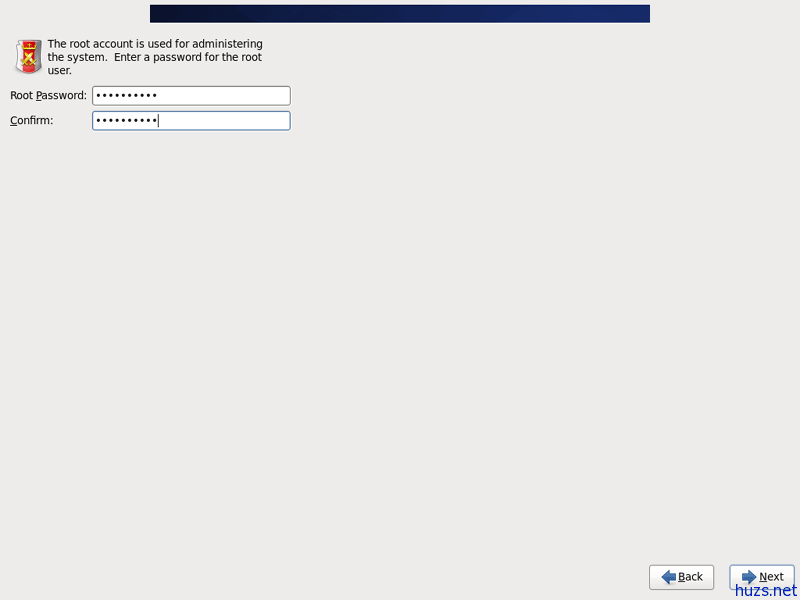
设置超级用户的密码:
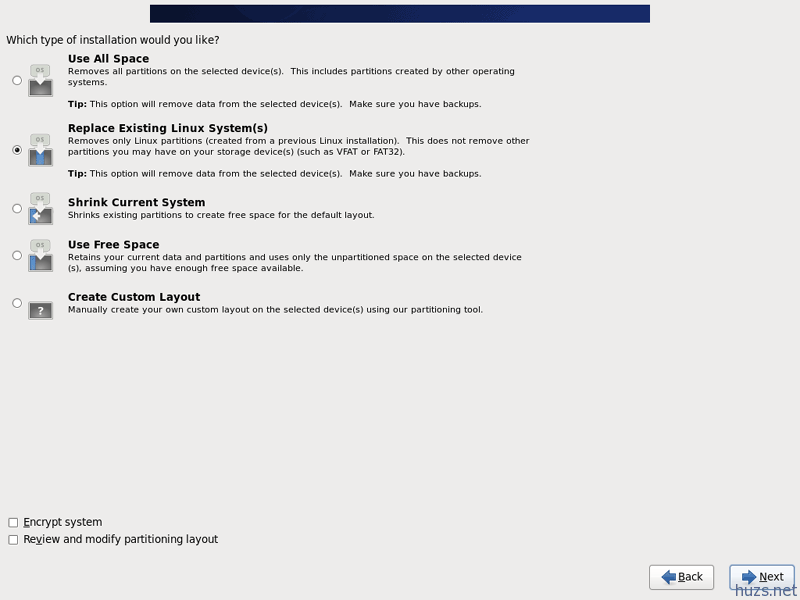
接下来,我们做分区。选择“替换现有的Linux系统(S)”。这会给你一个小的/ boot分区,一个大的/分区这是我们的目的:
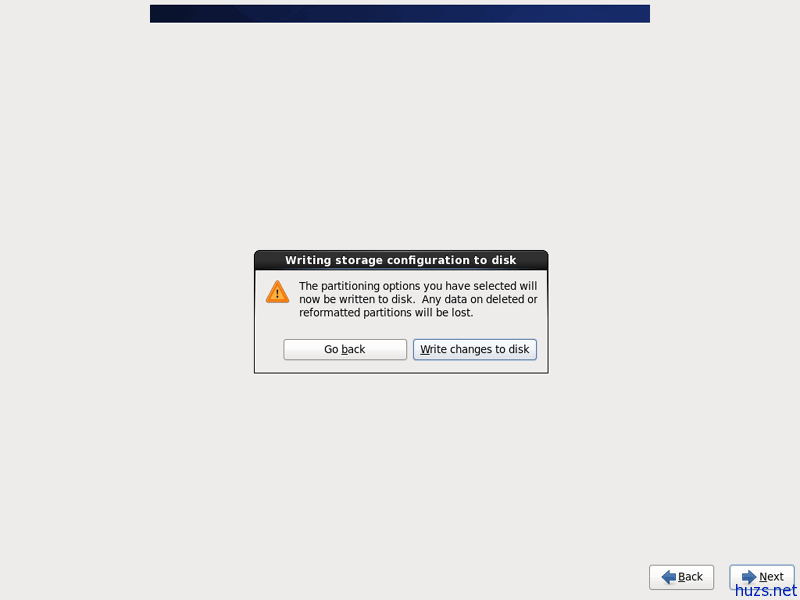
选择“修改写入磁盘”:
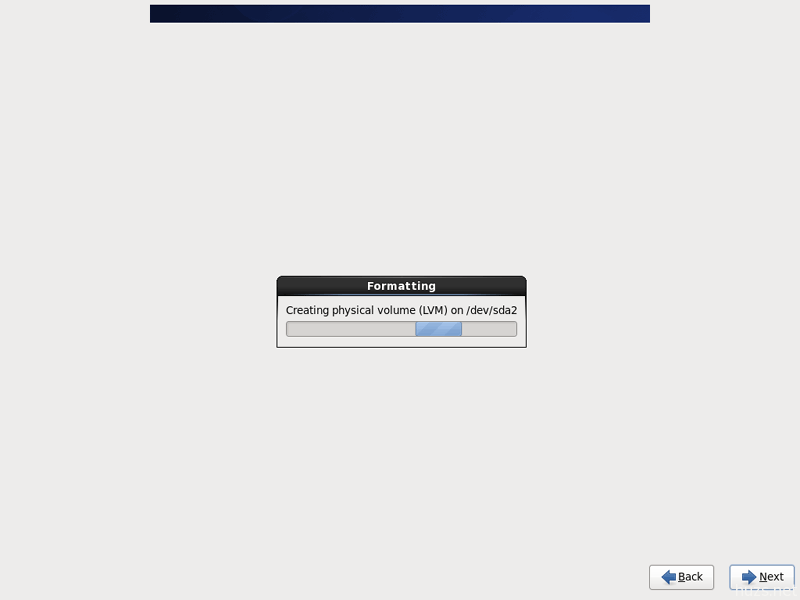
正在格式化硬盘驱动器:
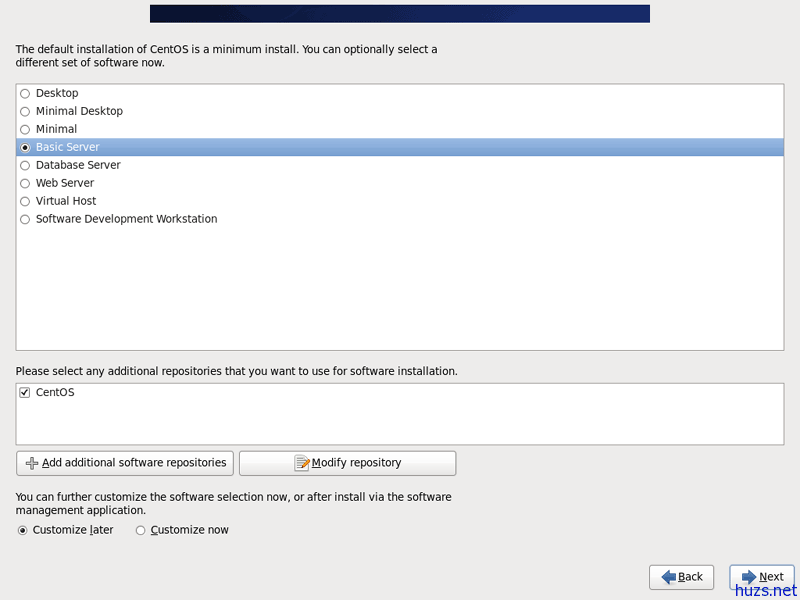
现在,我们选择我们想要的软件安装。选择基本服务器,然后检查CentOS的额外的资料库栏位中,选择“自定义”后,单击“下一步”:
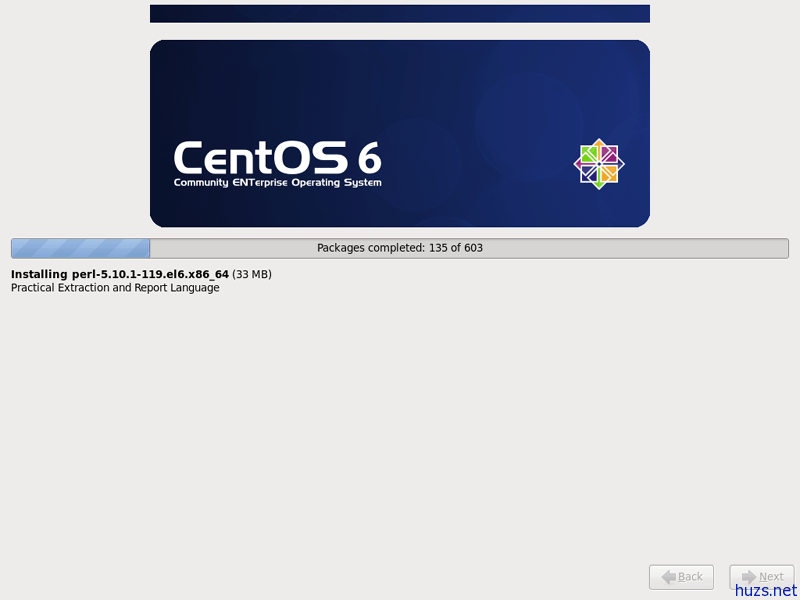
开始安装。这将需要几分钟的时间:
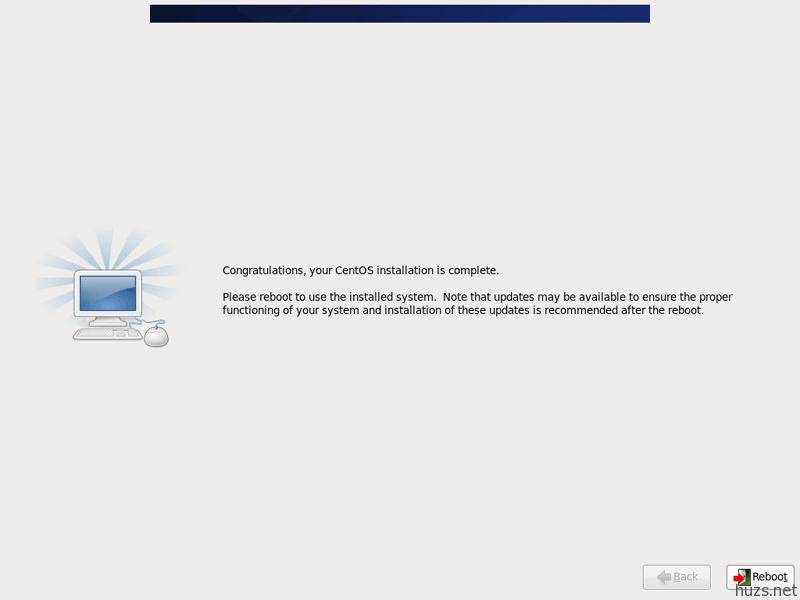
最后,安装完成后,您可以从计算机中删除您的DVD,然后重新启动它:
重新启动后,以root身份登录.
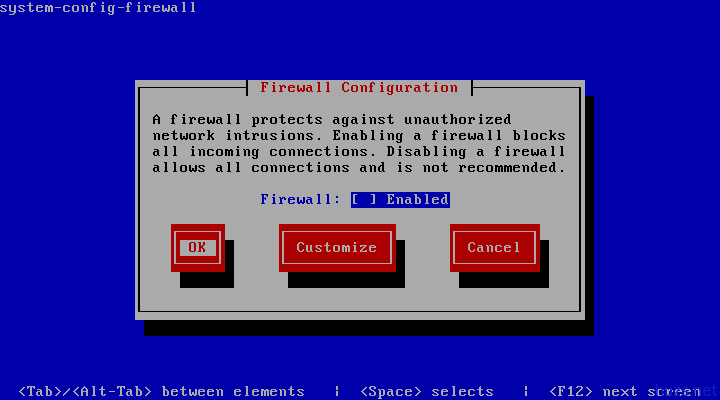
我希望,安装ISPConfig本教程结束时,它有其自己的防火墙。这就是为什么我现在禁用默认的CentOS的防火墙。当然,你可以自由离开它,并将它配置您的需求(但你不应该使用任何其他的防火墙以后,因为它很可能会干扰CentOS的防火墙)。
运行…
system-config-firewall-tui
… 禁用防火墙。之后点击OK:
选择Yes,确认您的选择:
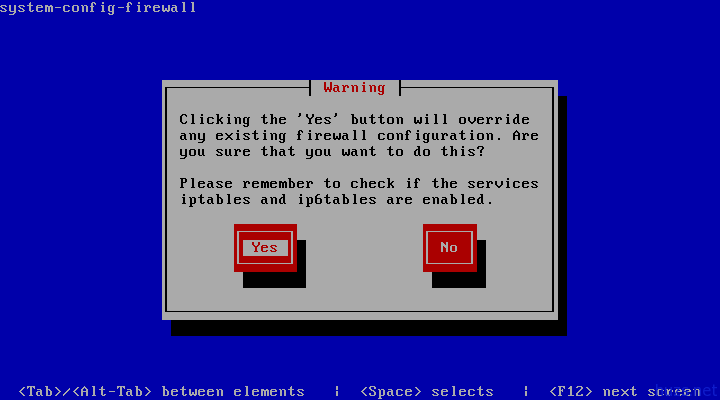
如果你没有在安装过程中配置网卡,你需要在这里配置。运行。..
system-config-network
… 配置驱动器:
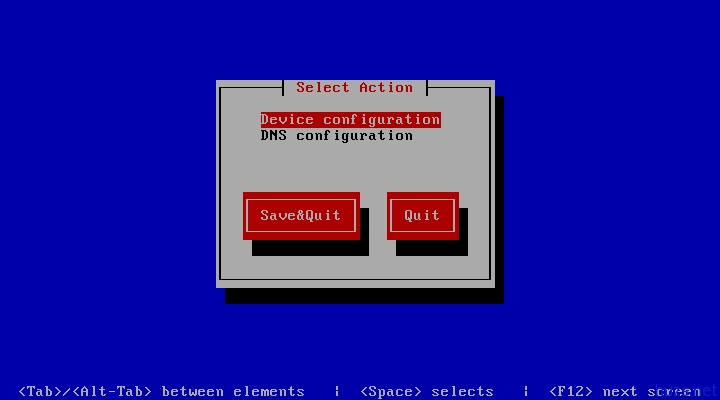
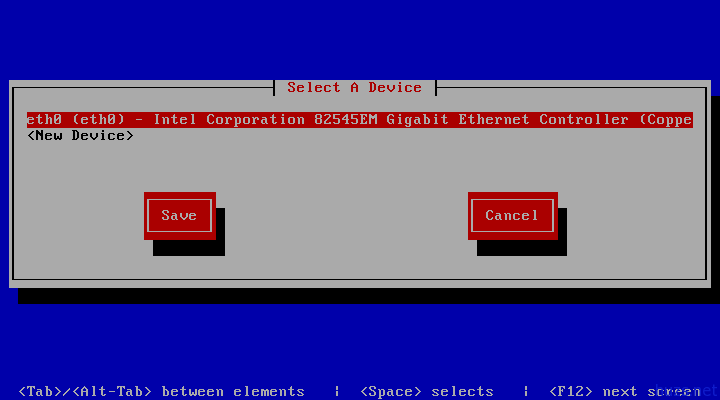
选择您的网络接口:
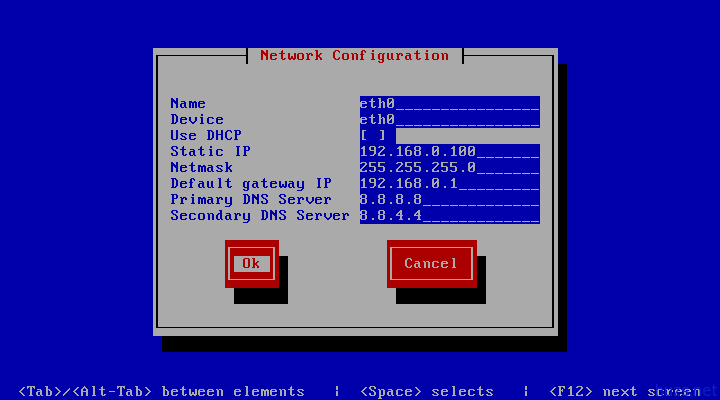
然后请填写您的网络 – 禁用DHCP(动态主机配置协议),并填写在一个静态的IP地址,网络掩码,网关,以及一个或两个域名服务器,然后点击OK:
接下来选择保存:
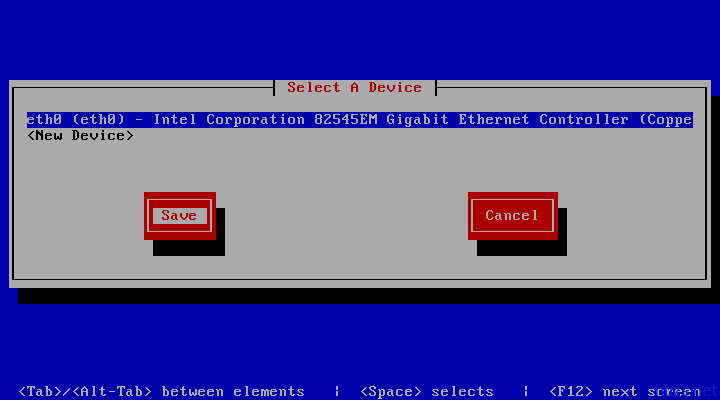
您也可以指定额外的域名服务器。选择“DNS配置:
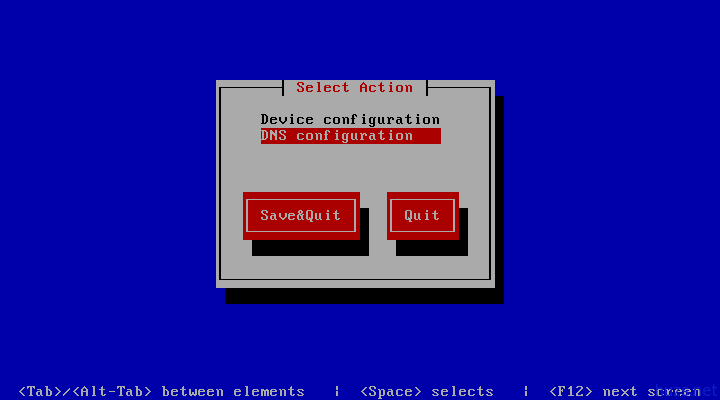
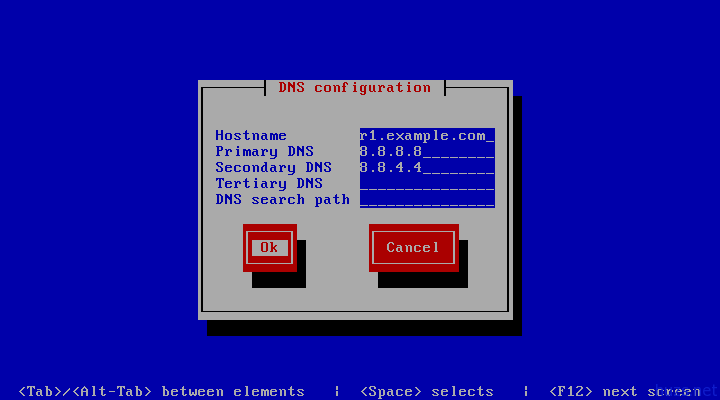
现在,您可以填写额外的域名服务器,点击OK:
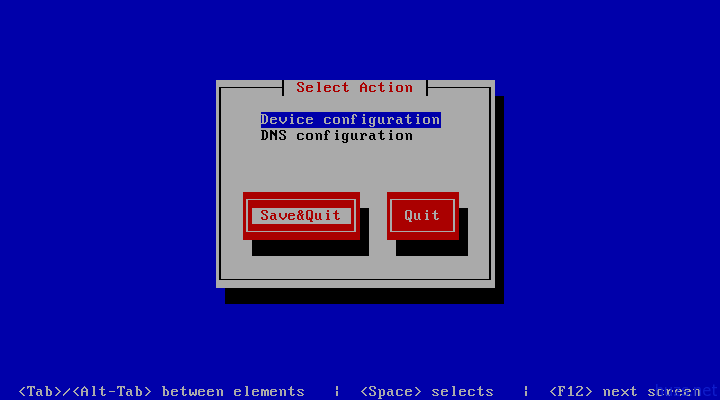
选择保存后退出:
您应该运行
ifconfig
现在,以检查你的IP地址是否安装正确的:
[root@server1 ~]# ifconfig
eth0 Link encap:Ethernet HWaddr 00:0C:29:00:85:AC
inet addr:192.168.0.100 Bcast:192.168.0.255 Mask:255.255.255.0
inet6 addr: fe80::20c:29ff:fe00:85ac/64 Scope:Link
UP BROADCAST RUNNING MULTICAST MTU:1500 Metric:1
RX packets:278 errors:0 dropped:0 overruns:0 frame:0
TX packets:86 errors:0 dropped:0 overruns:0 carrier:0
collisions:0 txqueuelen:1000
RX bytes:28503 (27.8 KiB) TX bytes:16360 (15.9 KiB)
lo Link encap:Local Loopback
inet addr:127.0.0.1 Mask:255.0.0.0
inet6 addr: ::1/128 Scope:Host
UP LOOPBACK RUNNING MTU:16436 Metric:1
RX packets:0 errors:0 dropped:0 overruns:0 frame:0
TX packets:0 errors:0 dropped:0 overruns:0 carrier:0
collisions:0 txqueuelen:0
RX bytes:0 (0.0 b) TX bytes:0 (0.0 b)
检查你的/ etc/ resolv.conf 如果它是否列出了所有你以前配置的域名服务器:
[root@server1 ~]#cat /etc/resolv.conf
如果域名服务器,运行
system-config-network
并添加缺少的域名服务器。
现在,在配置…
4 调整/etc/hosts
接下来我们编辑/ etc/ hosts文件。使它看起来像这样:
vi /etc/hosts
127.0.0.1 localhost localhost.localdomain localhost4 localhost4.localdomain4 |
5 配置防火墙
(基本系统安装结束时,如果你已经禁用了防火墙,您可以跳过这一章)。
我希望,安装ISPConfig本教程结束时,它有其自己的防火墙。这就是为什么我现在禁用默认的CentOS的防火墙。当然,你可以自由离开它,并将它配置您的需求(但你不应该使用任何其他的防火墙以后,因为它很可能会干扰CentOS的防火墙)。
运行
system-config-firewall
然后禁用防火墙.
检查防火墙真的被禁用,您可以运行:
iptables -L
如果是,输出应该是这样的:
[root@server1 ~]# iptables -L
Chain INPUT (policy ACCEPT)
target prot opt source destination
Chain FORWARD (policy ACCEPT)
target prot opt source destination
Chain OUTPUT (policy ACCEPT)
target prot opt source destination
[root@server1 ~]#
6 禁用SELinux
SELinux是一个安全的扩展,CentOS的,应提供扩展的安全性。在我看来,你并不需要它来配置一个安全的系统,它通常会导致更多的问题比的优势(认为你做了一个星期后,故障排除,因为有些服务不能正常工作的,然后你发现一切正常,只有SELinux是造成问题的原因)。因此,我将其禁用(这是必须的,如果你想,安装ISPConfig以后)。
编辑文件:/etc/selinux/config 并设置: SELINUX=disabled:
vi /etc/selinux/config
# This file controls the state of SELinux on the system. |
之后,我们必须重新启动系统:
reboot
7启用额外的资料库和安装一些软件
首先,我们导入GPG keys软件包:
rpm –import /etc/pki/rpm-gpg/RPM-GPG-KEY*
在本教程中,我们需要安装的软件包因为官方的CentOS6.3库许多不具备,所以要启用RPMforge和EPEL库:
rpm –import http://dag.wieers.com/rpm/packages/RPM-GPG-KEY.dag.txt
rpm -ivh http://pkgs.repoforge.org/rpmforge-release/rpmforge-release-0.5.2-2.el6.rf.x86_64.rpm
(如果上面的链接不工作了,你可以找到最新的版本rpmforge的发行版:http://packages.sw.be/rpmforge-release/)
rpm –import https://fedoraproject.org/static/0608B895.txt
rpm -ivh http://dl.fedoraproject.org/pub/epel/6/x86_64/epel-release-6-7.noarch.rpm
我们还需要启用 Remi RPM 库, 其中包含PHP-FPM封装,我们将在稍后安装:
rpm –import http://rpms.famillecollet.com/RPM-GPG-KEY-remi
rpm -ivh http://rpms.famillecollet.com/enterprise/remi-release-6.rpm
yum install yum-priorities
vi /etc/yum.repos.d/epel.repo
… 并添加行 priority=10 到 [epel] 部分:
[epel] |
然后做同样的[remi]部分在 /etc/yum.repos.d/remi.repo, 设置enabled=1:
vi /etc/yum.repos.d/remi.repo
[remi] |
然后,我们更新我们现有的系统上的软件包:
yum update
现在,我们以后需要安装一些软件包:
yum groupinstall ‘Development Tools’
8 Quota
(If you have chosen a different partitioning scheme than I did, you must adjust this chapter so that quota applies to the partitions where you need it.)
To install quota, we run this command:
yum install quota
Edit /etc/fstab and add ,usrjquota=aquota.user,grpjquota=aquota.group,jqfmt=vfsv0 to the / partition (/dev/mapper/vg_server1-lv_root):
vi /etc/fstab
# |
Then run
mount -o remount /
quotacheck -avugm
quotaon -avug
to enable quota.
9 Synchronize The System Clock
It is a good idea to synchronize the system clock with an NTP (network time protocol) server over the Internet. Simply run
yum install ntp
and your system time will always be in sync.
10 Install MySQL
Install MySQL as follows:
yum install mysql mysql-server
Then create the system startup links for MySQL and start it:
chkconfig –levels 235 mysqld on
/etc/init.d/mysqld start
Set passwords for the MySQL root account:
mysql_secure_installation
[root@server1 tmp]# mysql_secure_installation
NOTE: RUNNING ALL PARTS OF THIS SCRIPT IS RECOMMENDED FOR ALL MySQL
SERVERS IN PRODUCTION USE! PLEASE READ EACH STEP CAREFULLY!
In order to log into MySQL to secure it, we’ll need the current
password for the root user. If you’ve just installed MySQL, and
you haven’t set the root password yet, the password will be blank,
so you should just press enter here.
Enter current password for root (enter for none):
OK, successfully used password, moving on…
Setting the root password ensures that nobody can log into the MySQL
root user without the proper authorisation.
Set root password? [Y/n] <– ENTER
New password: <– yourrootsqlpassword
Re-enter new password: <– yourrootsqlpassword
Password updated successfully!
Reloading privilege tables..
… Success!
By default, a MySQL installation has an anonymous user, allowing anyone
to log into MySQL without having to have a user account created for
them. This is intended only for testing, and to make the installation
go a bit smoother. You should remove them before moving into a
production environment.
Remove anonymous users? [Y/n] <– ENTER
… Success!
Normally, root should only be allowed to connect from ‘localhost’. This
ensures that someone cannot guess at the root password from the network.
Disallow root login remotely? [Y/n] <– ENTER
… Success!
By default, MySQL comes with a database named ‘test’ that anyone can
access. This is also intended only for testing, and should be removed
before moving into a production environment.
Remove test database and access to it? [Y/n] <– ENTER
– Dropping test database…
… Success!
– Removing privileges on test database…
… Success!
Reloading the privilege tables will ensure that all changes made so far
will take effect immediately.
Reload privilege tables now? [Y/n] <– ENTER
… Success!
Cleaning up…
All done! If you’ve completed all of the above steps, your MySQL
installation should now be secure.
Thanks for using MySQL!
[root@server1 tmp]#
11 Install Dovecot
Dovecot can be installed as follows:
yum install dovecot dovecot-mysql
Now create the system startup links and start Dovecot:
chkconfig –levels 235 dovecot on
/etc/init.d/dovecot start
12 Install Postfix
Postfix can be installed as follows:
yum install postfix
Then turn off Sendmail and start Postfix:
chkconfig –levels 235 sendmail off
chkconfig –levels 235 postfix on
/etc/init.d/sendmail stop
/etc/init.d/postfix restart
13 Install Getmail
Getmail can be installed as follows:
yum install getmail
14 Install Amavisd-new, SpamAssassin, And ClamAV
To install amavisd-new, spamassassin and clamav, run the following command:
yum install amavisd-new spamassassin clamav clamd unzip bzip2 unrar perl-DBD-mysql
Then we start freshclam, amavisd, and clamd.amavisd:
sa-update
chkconfig –levels 235 amavisd on
chkconfig –del clamd
chkconfig –levels 235 clamd.amavisd on
/usr/bin/freshclam
/etc/init.d/amavisd start
/etc/init.d/clamd.amavisd start
15 Install Nginx, PHP5 (PHP-FPM), And Fcgiwrap
Nginx is available as a package for CentOS 6.3 (from EPEL) which we can install as follows:
yum install nginx
If Apache2 is already installed on the system, stop it now…
/etc/init.d/httpd stop
… and remove Apache’s system startup links:
chkconfig –del httpd
Then we create the system startup links for nginx and start it:
chkconfig –levels 235 nginx on
/etc/init.d/nginx start
(If both Apache2 and nginx are installed, the ISPConfig 3 installer will ask you which one you want to use – answer nginx in this case. If only one of these both is installed, ISPConfig will do the necessary configuration automatically.)
We can make PHP5 work in nginx through PHP-FPM (PHP-FPM (FastCGI Process Manager) is an alternative PHP FastCGI implementation with some additional features useful for sites of any size, especially busier sites). We can install php-fpm together with php-cli and some PHP5 modules like php-mysql which you need if you want to use MySQL from your PHP scripts as follows:
yum install php-fpm php-cli php-mysql php-gd php-imap php-ldap php-odbc php-pear php-xml php-xmlrpc php-pecl-apc php-magickwand php-magpierss php-mbstring php-mcrypt php-mssql php-shout php-snmp php-soap php-tidy
Next we open /etc/php.ini…
vi /etc/php.ini
… and change the error reporting (so that notices aren’t shown any longer):
[...] |
Also set cgi.fix_pathinfo=0:
vi /etc/php.ini
[...] |
(Please read http://wiki.nginx.org/Pitfalls to find out why you should do this.)
In addition to that, in order to avoid errors like
[08-Aug-2011 18:07:08] PHP Warning: phpinfo(): It is not safe to rely on the system’s timezone settings. You are *required* to use the date.timezone setting or the date_default_timezone_set() function. In case you used any of those methods and you are still getting this warning, you most likely misspelled the timezone identifier. We selected ‘Europe/Berlin’ for ‘CEST/2.0/DST’ instead in /usr/share/nginx/html/info.php on line 2
… in /var/log/php-fpm/www-error.log when you call a PHP script in your browser, you should set date.timezone in /etc/php.ini:
[...] |
You can find out the correct timezone for your system by running:
cat /etc/sysconfig/clock
[root@server1 tmp]# cat /etc/sysconfig/clock
ZONE=”Europe/Berlin”
[root@server1 tmp]#
Next create the system startup links for php-fpm and start it:
chkconfig –levels 235 php-fpm on
/etc/init.d/php-fpm start
PHP-FPM is a daemon process (with the init script /etc/init.d/php-fpm) that runs a FastCGI server on port 9000.
To get CGI support in nginx, we install Fcgiwrap.
Fcgiwrap is a CGI wrapper that should work also for complex CGI scripts and can be used for shared hosting environments because it allows each vhost to use its own cgi-bin directory.
As there’s no fcgiwrap package for CentOS 6.3, we must build it ourselves. First we install some prerequisites:
yum install fcgi-devel
Now we can build fcgiwrap as follows:
cd /usr/local/src/
git clone git://github.com/gnosek/fcgiwrap.git
cd fcgiwrap
autoreconf -i
./configure
make
make install
This installs fcgiwrap to /usr/local/sbin/fcgiwrap.
Next we install the spawn-fcgi package which allows us to run fcgiwrap as a daemon:
yum install spawn-fcgi
Open /etc/sysconfig/spawn-fcgi…
vi /etc/sysconfig/spawn-fcgi
… and modify the file as follows:
# You must set some working options before the "spawn-fcgi" service will work. |
Now add the user nginx to the group apache:
usermod -a -G apache nginx
Create the system startup links for spawn-fcgi…
chkconfig –levels 235 spawn-fcgi on
… and start it as follows:
/etc/init.d/spawn-fcgi start
You should now find the fcgiwrap socket in /var/run/fcgiwrap.socket, owned by the user and group apache (some scripts, e.g. Mailman, expect to be run by the user/group apache, that’s why we don’t run spawn-fcgi as user/group nginx, but instead add nginx to the apache group).
16 Install phpMyAdmin
Next we install phpMyAdmin:
yum install phpmyadmin
Next we change the authentication in phpMyAdmin from cookie to http:
vi /usr/share/phpmyadmin/config.inc.php
[...] |
You can now find phpMyAdmin in the /usr/share/phpmyadmin/ directory.
After you have installed ISPConfig 3, you can access phpMyAdmin as follows:
The ISPConfig apps vhost on port 8081 for nginx comes with a phpMyAdmin configuration, so you can use http://server1.example.com:8081/phpmyadmin or http://server1.example.com:8081/phpMyAdmin to access phpMyAdmin.
If you want to use a /phpmyadmin or /phpMyAdmin alias that you can use from your web sites, this is a bit more complicated than for Apache because nginx does not have global aliases (i.e., aliases that can be defined for all vhosts). Therefore you have to define these aliases for each vhost from which you want to access phpMyAdmin.
To do this, paste the following into the nginx Directives field on the Options tab of the web site in ISPConfig:
location /phpmyadmin {
|
If you use https instead of http for your vhost, you should add the line fastcgi_param HTTPS on; to your phpMyAdmin configuration like this:
location /phpmyadmin {
|
If you use both http and https for your vhost, you need to add the following section to the http {} section in /etc/nginx/nginx.conf (before any include lines) which determines if the visitor uses http or https and sets the $fastcgi_https variable (which we will use in our phpMyAdmin configuration) accordingly:
vi /etc/nginx/nginx.conf
[...] |
Don’t forget to reload nginx afterwards:
/etc/init.d/nginx reload
Then go to the nginx Directives field again, and instead of fastcgi_param HTTPS on; you add the line fastcgi_param HTTPS $fastcgi_https; so that you can use phpMyAdmin for both http and https requests:
location /phpmyadmin {
|
17 Install Mailman
Since version 3.0.4, ISPConfig also allows you to manage (create/modify/delete) Mailman mailing lists. If you want to make use of this feature, install Mailman as follows:
yum install mailman
Before we can start Mailman, a first mailing list called mailman must be created:
/usr/lib/mailman/bin/newlist mailman
[root@server1 tmp]# /usr/lib/mailman/bin/newlist mailman
Enter the email of the person running the list: <– admin email address, e.g. listadmin@example.com
Initial mailman password: <– admin password for the mailman list
To finish creating your mailing list, you must edit your /etc/aliases (or
equivalent) file by adding the following lines, and possibly running the
`newaliases’ program:
## mailman mailing list
mailman: “|/usr/lib/mailman/mail/mailman post mailman”
mailman-admin: “|/usr/lib/mailman/mail/mailman admin mailman”
mailman-bounces: “|/usr/lib/mailman/mail/mailman bounces mailman”
mailman-confirm: “|/usr/lib/mailman/mail/mailman confirm mailman”
mailman-join: “|/usr/lib/mailman/mail/mailman join mailman”
mailman-leave: “|/usr/lib/mailman/mail/mailman leave mailman”
mailman-owner: “|/usr/lib/mailman/mail/mailman owner mailman”
mailman-request: “|/usr/lib/mailman/mail/mailman request mailman”
mailman-subscribe: “|/usr/lib/mailman/mail/mailman subscribe mailman”
mailman-unsubscribe: “|/usr/lib/mailman/mail/mailman unsubscribe mailman”
Hit enter to notify mailman owner… <– ENTER
[root@server1 tmp]#
Open /etc/aliases afterwards…
vi /etc/aliases
… and add the following lines:
[...] |
Run
newaliases
afterwards and restart Postfix:
/etc/init.d/postfix restart
Create the system startup links for Mailman and start it:
chkconfig –levels 235 mailman on
/etc/init.d/mailman start
Now we need to create this symlink to make Mailman work with ISPConfig:
cd /usr/lib/mailman/cgi-bin/
ln -s ./ mailman
If you want to use Mailman from your web sites created through ISPConfig, this is a bit more complicated than for Apache because nginx does not have global aliases (i.e., aliases that can be defined for all vhosts). Therefore you have to define these aliases for each vhost from which you want to access Mailman.
To do this, paste the following into the nginx Directives field on the Options tab of the web site in ISPConfig:
location /cgi-bin/mailman {
|
This defines the alias /cgi-bin/mailman/ for your vhost, which means you can access the Mailman admin interface for a list at http://<vhost>/cgi-bin/mailman/admin/<listname>, and the web page for users of a mailing list can be found at http://<vhost>/cgi-bin/mailman/listinfo/<listname>.
Under http://<vhost>/pipermail you can find the mailing list archives.
18 Install PureFTPd
PureFTPd can be installed with the following command:
yum install pure-ftpd
Then create the system startup links and start PureFTPd:
chkconfig –levels 235 pure-ftpd on
/etc/init.d/pure-ftpd start
Now we configure PureFTPd to allow FTP and TLS sessions. FTP is a very insecure protocol because all passwords and all data are transferred in clear text. By using TLS, the whole communication can be encrypted, thus making FTP much more secure.
OpenSSL is needed by TLS; to install OpenSSL, we simply run:
yum install openssl
Open /etc/pure-ftpd/pure-ftpd.conf…
vi /etc/pure-ftpd/pure-ftpd.conf
If you want to allow FTP and TLS sessions, set TLS to 1:
[...] |
In order to use TLS, we must create an SSL certificate. I create it in /etc/ssl/private/, therefore I create that directory first:
mkdir -p /etc/ssl/private/
Afterwards, we can generate the SSL certificate as follows:
openssl req -x509 -nodes -days 7300 -newkey rsa:2048 -keyout /etc/ssl/private/pure-ftpd.pem -out /etc/ssl/private/pure-ftpd.pem
Country Name (2 letter code) [XX]: <– Enter your Country Name (e.g., “DE”).
State or Province Name (full name) []: <– Enter your State or Province Name.
Locality Name (eg, city) [Default City]: <– Enter your City.
Organization Name (eg, company) [Default Company Ltd]: <– Enter your Organization Name (e.g., the name of your company).
Organizational Unit Name (eg, section) []: <– Enter your Organizational Unit Name (e.g. “IT Department”).
Common Name (eg, your name or your server’s hostname) []: <– Enter the Fully Qualified Domain Name of the system (e.g. “server1.example.com”).
Email Address []: <– Enter your Email Address.
Change the permissions of the SSL certificate:
chmod 600 /etc/ssl/private/pure-ftpd.pem
Finally restart PureFTPd:
/etc/init.d/pure-ftpd restart
That’s it. You can now try to connect using your FTP client; however, you should configure your FTP client to use TLS.
19 Install BIND
We can install BIND as follows:
yum install bind bind-utils
Next open /etc/sysconfig/named…
vi /etc/sysconfig/named
… and make sure that the ROOTDIR=/var/named/chroot line is comment out:
# BIND named process options |
Make a backup of the existing /etc/named.conf file and create a new one as follows:
cp /etc/named.conf /etc/named.conf_bak
cat /dev/null > /etc/named.conf
vi /etc/named.conf
// |
Create the file /etc/named.conf.local that is included at the end of /etc/named.conf (/etc/named.conf.local will later on get populated by ISPConfig if you create DNS zones in ISPConfig):
touch /etc/named.conf.local
Then we create the startup links and start BIND:
chkconfig –levels 235 named on
/etc/init.d/named start
20 Install Webalizer And AWStats
Webalizer and AWStats can be installed as follows:
yum install webalizer awstats perl-DateTime-Format-HTTP perl-DateTime-Format-Builder
21 Install Jailkit
Jailkit is needed only if you want to chroot SSH users. It can be installed as follows (important: Jailkit must be installed before ISPConfig – it cannot be installed afterwards!):
cd /tmp
wget http://olivier.sessink.nl/jailkit/jailkit-2.15.tar.gz
tar xvfz jailkit-2.15.tar.gz
cd jailkit-2.15
./configure
make
make install
cd ..
rm -rf jailkit-2.15*
22 Install fail2ban
This is optional but recommended, because the ISPConfig monitor tries to show the log:
yum install fail2ban
We must configure fail2ban to log to the log file /var/log/fail2ban.log because this is the log file that is monitored by the ISPConfig Monitor module. Open /etc/fail2ban/fail2ban.conf…
vi /etc/fail2ban/fail2ban.conf
… and comment out the logtarget = SYSLOG line and add logtarget = /var/log/fail2ban.log:
[...] |
Then create the system startup links for fail2ban and start it:
chkconfig –levels 235 fail2ban on
/etc/init.d/fail2ban start
23 Install rkhunter
rkhunter can be installed as follows:
yum install rkhunter
24 Install SquirrelMail
To install the SquirrelMail webmail client, run…
yum install squirrelmail
Then configure SquirrelMail:
/usr/share/squirrelmail/config/conf.pl
We must tell SquirrelMail that we are using Dovecot:
SquirrelMail Configuration : Read: config.php (1.4.0)
———————————————————
Main Menu —
1. Organization Preferences
2. Server Settings
3. Folder Defaults
4. General Options
5. Themes
6. Address Books
7. Message of the Day (MOTD)
8. Plugins
9. Database
10. Languages
D. Set pre-defined settings for specific IMAP servers
C Turn color off
S Save data
Q Quit
Command >> <– D
SquirrelMail Configuration : Read: config.php
———————————————————
While we have been building SquirrelMail, we have discovered some
preferences that work better with some servers that don’t work so
well with others. If you select your IMAP server, this option will
set some pre-defined settings for that server.
Please note that you will still need to go through and make sure
everything is correct. This does not change everything. There are
only a few settings that this will change.
Please select your IMAP server:
bincimap = Binc IMAP server
courier = Courier IMAP server
cyrus = Cyrus IMAP server
dovecot = Dovecot Secure IMAP server
exchange = Microsoft Exchange IMAP server
hmailserver = hMailServer
macosx = Mac OS X Mailserver
mercury32 = Mercury/32
uw = University of Washington’s IMAP server
gmail = IMAP access to Google mail (Gmail) accounts
quit = Do not change anything
Command >> <– dovecot
SquirrelMail Configuration : Read: config.php
———————————————————
While we have been building SquirrelMail, we have discovered some
preferences that work better with some servers that don’t work so
well with others. If you select your IMAP server, this option will
set some pre-defined settings for that server.
Please note that you will still need to go through and make sure
everything is correct. This does not change everything. There are
only a few settings that this will change.
Please select your IMAP server:
bincimap = Binc IMAP server
courier = Courier IMAP server
cyrus = Cyrus IMAP server
dovecot = Dovecot Secure IMAP server
exchange = Microsoft Exchange IMAP server
hmailserver = hMailServer
macosx = Mac OS X Mailserver
mercury32 = Mercury/32
uw = University of Washington’s IMAP server
gmail = IMAP access to Google mail (Gmail) accounts
quit = Do not change anything
Command >> courier
imap_server_type = courier
default_folder_prefix = INBOX.
trash_folder = Trash
sent_folder = Sent
draft_folder = Drafts
show_prefix_option = false
default_sub_of_inbox = false
show_contain_subfolders_option = false
optional_delimiter = .
delete_folder = true
Press enter to continue… <– press ENTER
SquirrelMail Configuration : Read: config.php (1.4.0)
———————————————————
Main Menu —
1. Organization Preferences
2. Server Settings
3. Folder Defaults
4. General Options
5. Themes
6. Address Books
7. Message of the Day (MOTD)
8. Plugins
9. Database
10. Languages
D. Set pre-defined settings for specific IMAP servers
C Turn color off
S Save data
Q Quit
Command >> <–S
SquirrelMail Configuration : Read: config.php (1.4.0)
———————————————————
Main Menu —
1. Organization Preferences
2. Server Settings
3. Folder Defaults
4. General Options
5. Themes
6. Address Books
7. Message of the Day (MOTD)
8. Plugins
9. Database
10. Languages
D. Set pre-defined settings for specific IMAP servers
C Turn color off
S Save data
Q Quit
Command >> <–Q
One last thing we need to do is modify the file /etc/squirrelmail/config_local.php and comment out the $default_folder_prefix variable – if you don’t do this, you will see the following error message in SquirrelMail after you’ve logged in: Query: CREATE “Sent” Reason Given: Invalid mailbox name.
vi /etc/squirrelmail/config_local.php
<?php |
You can now find SquirrelMail in the /usr/share/squirrelmail/ directory.
After you have installed ISPConfig 3, you can access SquirrelMail as follows:
The ISPConfig apps vhost on port 8081 for nginx comes with a SquirrelMail configuration, so you can use http://server1.example.com:8081/squirrelmail or http://server1.example.com:8081/webmail to access SquirrelMail.
If you want to use a /webmail or /squirrelmail alias that you can use from your web sites, this is a bit more complicated than for Apache because nginx does not have global aliases (i.e., aliases that can be defined for all vhosts). Therefore you have to define these aliases for each vhost from which you want to access SquirrelMail.
To do this, paste the following into the nginx Directives field on the Options tab of the web site in ISPConfig:
location /squirrelmail {
|
If you use https instead of http for your vhost, you should add the line fastcgi_param HTTPS on; to your SquirrelMail configuration like this:
location /squirrelmail {
|
If you use both http and https for your vhost, you need to add the following section to the http {} section in /etc/nginx/nginx.conf (before any include lines) which determines if the visitor uses http or https and sets the $fastcgi_https variable (which we will use in our SquirrelMail configuration) accordingly (please note that you don’t need to do this if you have added this section before, for example when you configured phpMyAdmin – see chapter 16):
vi /etc/nginx/nginx.conf
[...] |
Don’t forget to reload nginx afterwards:
/etc/init.d/nginx reload
Then go to the nginx Directives field again, and instead of fastcgi_param HTTPS on; you add the line fastcgi_param HTTPS $fastcgi_https; so that you can use SquirrelMail for both http and https requests:
        location /squirrelmail {
               root /usr/share/;
               index index.php index.html index.htm;
               location ~ ^/squirrelmail/(.+\.php)$ {
                       try_files $uri =404;
                       root /usr/share/;
                       fastcgi_pass 127.0.0.1:9000;
                       fastcgi_param HTTPS $fastcgi_https; # <-- add this line
                       fastcgi_index index.php;
                       fastcgi_param SCRIPT_FILENAME $request_filename;
                       include /etc/nginx/fastcgi_params;
                       fastcgi_param PATH_INFO $fastcgi_script_name;
                       fastcgi_buffer_size 128k;
                       fastcgi_buffers 256 4k;
                       fastcgi_busy_buffers_size 256k;
25 Install ISPConfig 3
Before you start the ISPConfig installation, make sure that Apache is stopped (if it is installed – it is possible that some of your installed packages have installed Apache as a dependency without you knowing). If Apache2 is already installed on the system, stop it now…
/etc/init.d/httpd stop
… and remove Apache’s system startup links:
chkconfig –del httpd
Make sure that nginx is running:
/etc/init.d/nginx restart
(If you have both Apache and nginx installed, the installer asks you which one you want to use: Apache and nginx detected. Select server to use for ISPConfig: (apache,nginx) [apache]:
Type nginx. If only Apache or nginx are installed, this is automatically detected by the installer, and no question is asked.)
Download the current ISPConfig 3 version and install it. The ISPConfig installer will configure all services like Postfix, Dovecot, etc. for you. A manual setup as required for ISPConfig 2 is not necessary anymore.
You now also have the possibility to let the installer create an SSL vhost for the ISPConfig control panel, so that ISPConfig can be accessed using https:// instead of http://. To achieve this, just press ENTER when you see this question: Do you want a secure (SSL) connection to the ISPConfig web interface (y,n) [y]:.
To install ISPConfig 3 from the latest released version, do this:
cd /tmp
wget http://www.ispconfig.org/downloads/ISPConfig-3-stable.tar.gz
tar xfz ISPConfig-3-stable.tar.gz
cd ispconfig3_install/install/
The next step is to run
php -q install.php
This will start the ISPConfig 3 installer:
[root@server1 install]# php -q install.php
——————————————————————————–
_____ ___________ _____ __ _ ____
|_ _/ ___| ___ \ / __ \ / _(_) /__ \
| | \ `–.| |_/ / | / \/ ___ _ __ | |_ _ __ _ _/ /
| | `–. \ __/ | | / _ \| ‘_ \| _| |/ _` | |_ |
_| |_/\__/ / | | \__/\ (_) | | | | | | | (_| | ___\ \
\___/\____/\_| \____/\___/|_| |_|_| |_|\__, | \____/
__/ |
|___/
——————————————————————————–
>> Initial configuration
Operating System: Redhat or compatible, unknown version.
Following will be a few questions for primary configuration so be careful.
Default values are in [brackets] and can be accepted with <ENTER>.
Tap in “quit” (without the quotes) to stop the installer.
Select language (en,de) [en]: <– ENTER
Installation mode (standard,expert) [standard]: <– ENTER
Full qualified hostname (FQDN) of the server, eg server1.domain.tld [server1.example.com]: <– ENTER
MySQL server hostname [localhost]: <– ENTER
MySQL root username [root]: <– ENTER
MySQL root password []: <– yourrootsqlpassword
MySQL database to create [dbispconfig]: <– ENTER
MySQL charset [utf8]: <– ENTER
Apache and nginx detected. Select server to use for ISPConfig: (apache,nginx) [apache]: <– nginx
Generating a 2048 bit RSA private key
…………………………………………………………….+++
………………………………………..+++
writing new private key to ‘smtpd.key’
—–
You are about to be asked to enter information that will be incorporated
into your certificate request.
What you are about to enter is what is called a Distinguished Name or a DN.
There are quite a few fields but you can leave some blank
For some fields there will be a default value,
If you enter ‘.’, the field will be left blank.
—–
Country Name (2 letter code) [XX]: <– ENTER
State or Province Name (full name) []: <– ENTER
Locality Name (eg, city) [Default City]: <– ENTER
Organization Name (eg, company) [Default Company Ltd]: <– ENTER
Organizational Unit Name (eg, section) []: <– ENTER
Common Name (eg, your name or your server’s hostname) []: <– ENTER
Email Address []: <– ENTER
Configuring Jailkit
Configuring Dovecot
Configuring Spamassassin
Configuring Amavisd
Configuring Getmail
Configuring Pureftpd
Configuring BIND
Configuring nginx
Configuring Vlogger
Configuring Apps vhost
Configuring Bastille Firewall
Configuring Fail2ban
Installing ISPConfig
ISPConfig Port [8080]: <– ENTER
Do you want a secure (SSL) connection to the ISPConfig web interface (y,n) [y]: <– ENTER
Generating RSA private key, 4096 bit long modulus
…………………………………………………..++
…………………………………………………………………++
e is 65537 (0x10001)
You are about to be asked to enter information that will be incorporated
into your certificate request.
What you are about to enter is what is called a Distinguished Name or a DN.
There are quite a few fields but you can leave some blank
For some fields there will be a default value,
If you enter ‘.’, the field will be left blank.
—–
Country Name (2 letter code) [XX]: <– ENTER
State or Province Name (full name) []: <– ENTER
Locality Name (eg, city) [Default City]: <– ENTER
Organization Name (eg, company) [Default Company Ltd]: <– ENTER
Organizational Unit Name (eg, section) []: <– ENTER
Common Name (eg, your name or your server’s hostname) []: <– ENTER
Email Address []: <– ENTER
Please enter the following ‘extra’ attributes
to be sent with your certificate request
A challenge password []: <– ENTER
An optional company name []: <– ENTER
writing RSA key
Configuring DBServer
Installing ISPConfig crontab
no crontab for root
no crontab for getmail
Restarting services …
Stopping mysqld: [ OK ]
Starting mysqld: [ OK ]
Shutting down postfix: [ OK ]
Starting postfix: [ OK ]
Stopping saslauthd: [FAILED]
Starting saslauthd: [ OK ]
Shutting down amavisd: Daemon [1554] terminated by SIGTERM
[ OK ]
amavisd stopped
Starting amavisd: [ OK ]
Stopping clamd.amavisd: [ OK ]
Starting clamd.amavisd: [ OK ]
Stopping Dovecot Imap: [ OK ]
Starting Dovecot Imap: [ OK ]
Reloading php-fpm: [ OK ]
Reloading nginx: [ OK ]
Stopping pure-ftpd: [ OK ]
Starting pure-ftpd: [ OK ]
Installation completed.
[root@server1 install]#
To fix the Mailman errors you might get during the ISPConfig installation, open /usr/lib/mailman/Mailman/mm_cfg.py…
vi /usr/lib/mailman/Mailman/mm_cfg.py
… and set DEFAULT_SERVER_LANGUAGE = ‘en’:
[...] |
Restart Mailman:
/etc/init.d/mailman restart
Finally we need to tell Dovecot to use the dovecot.conf file generated by ISPConfig – /etc/dovecot.conf – and not the default /etc/dovecot/dovecot.conf:
cd /etc/dovecot
mv dovecot.conf dovecot.conf_orig
ln -s ../dovecot.conf dovecot.conf
/etc/init.d/dovecot restart
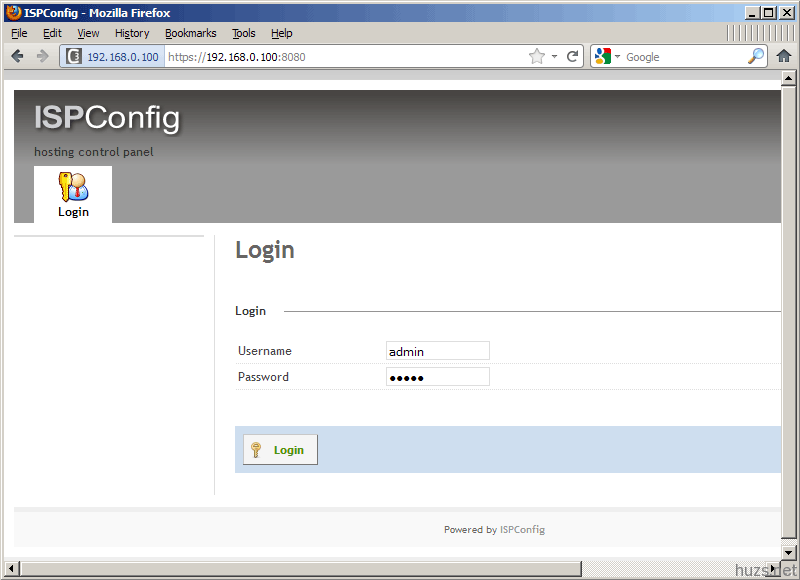
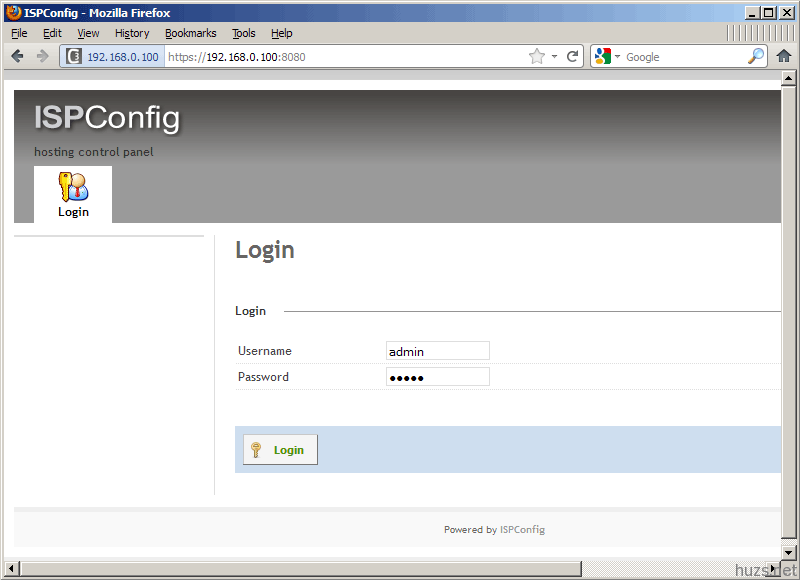
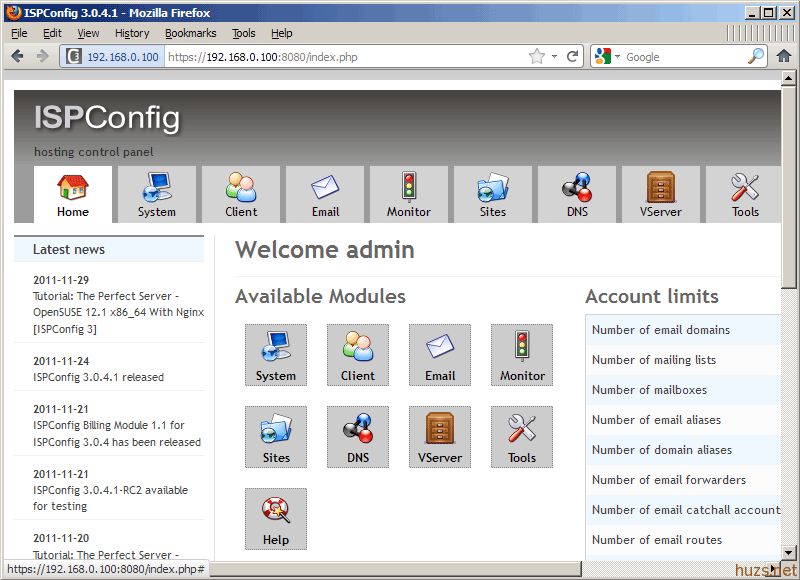
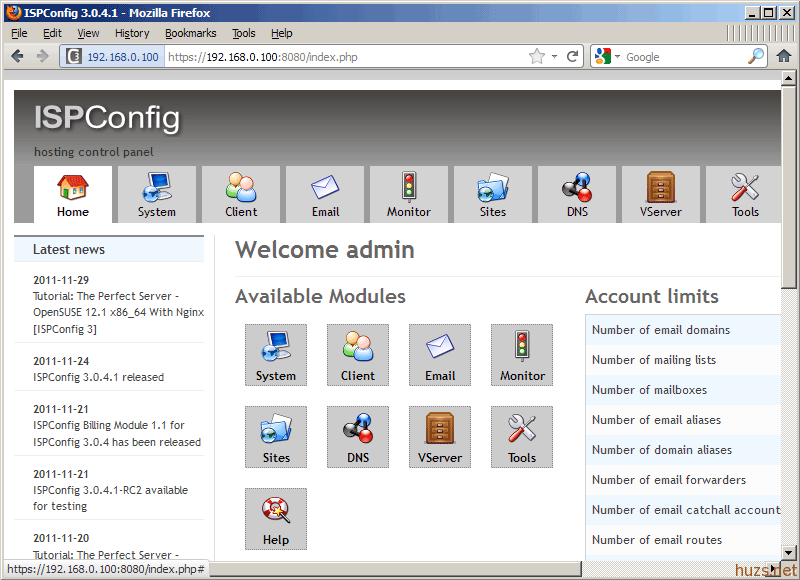
Afterwards you can access ISPConfig 3 under http(s)://server1.example.com:8080/ or http(s)://192.168.0.100:8080/ (http or https depends on what you chose during installation). Log in with the username admin and the password admin (you should change the default password after your first login):
The system is now ready to be used.
If you want to use IPv6 addresses with your nginx vhosts, please do the following before you create IPv6 vhosts in ISPConfig:
Open /etc/sysctl.conf…
vi /etc/sysctl.conf
… and add the line net.ipv6.bindv6only = 1:
[...] |
Run…
sysctl -p
… afterwards for the change to take effect.